Want a digital menu for your restaurant, bar, or cafe without printing a new menu every time a price changes? A QR menu lets guests check products, descriptions, and prices on their phone by scanning a code. This guide explains how to create a free QR menu, match it to your brand, and publish it in a few steps, with no coding or web design experience.
What is a QR menu and how does it work?
A QR menu is a digital menu guests open by scanning a QR code with their phone camera. Instead of handing out a printed menu, you place the code on tables, at the counter, or anywhere people can see it.
After the scan, the menu opens in the phone browser. Guests can choose among different menus, such as a lunch menu, a dinner menu, a dessert menu, or the menu in English. Each menu is organized into sections — starters, mains, sides, desserts, or drinks — and each section lists the products with their description, photo, allergens, and price. There is no need to download an app.
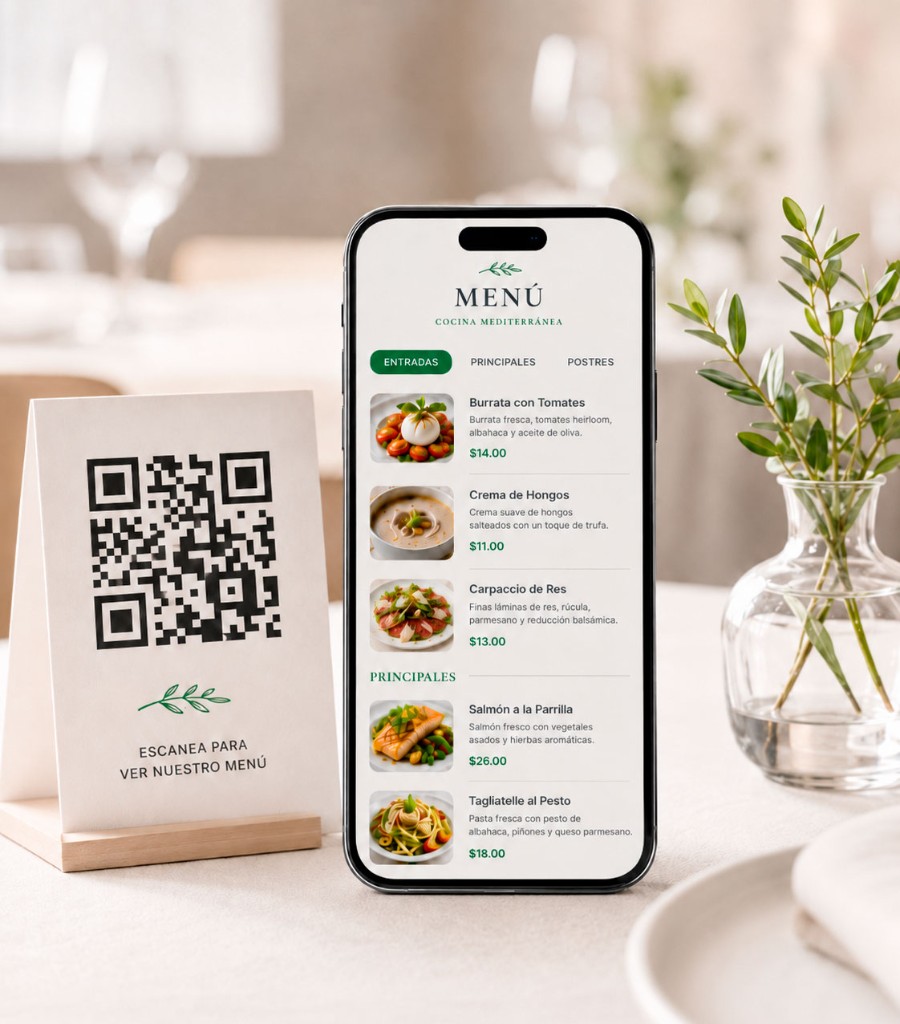
If you use a platform with dynamic QR menus, you can update that information without generating or printing a new code each time something changes. That is especially useful for restaurants, bars, and cafes that adjust prices, add dishes, or rotate the offer often.
How to create a free QR menu in 6 steps
Setting up a digital menu is simpler than it looks. With App Menu QR you add your business, organize products, and get a QR code ready to print or share.
Step 1. Create your App Menu QR account
Start by creating a free account. From the dashboard you can set up the business without installing software or writing code.
Step 2. Add your business details
Enter the venue name, a short description, contact details, and location. Upload your logo and a cover image so the menu is recognizable at a glance. You also choose the currency, or currencies, used to display prices.
Step 3. Create your first menu and organize sections
Create the menu and split it into categories that are easy to scan. A restaurant might use:
- Starters
- Main courses
- Drinks
- Desserts
A cafe might group breakfast, coffee, tea, pastries, and cold drinks. Use clear category names. The simpler the structure, the faster guests find what they want.
Step 4. Add products, descriptions, and prices
For each item, add the name, a specific description, and the price. A well-lit photo helps people decide, as long as it shows the dish the way you serve it.
Grilled beef burger with cheese, lettuce, tomato, and house sauce, served with fries.
A short description explains what is included and cuts down questions at the table. Prefer sharp photos with good light and a clean frame.
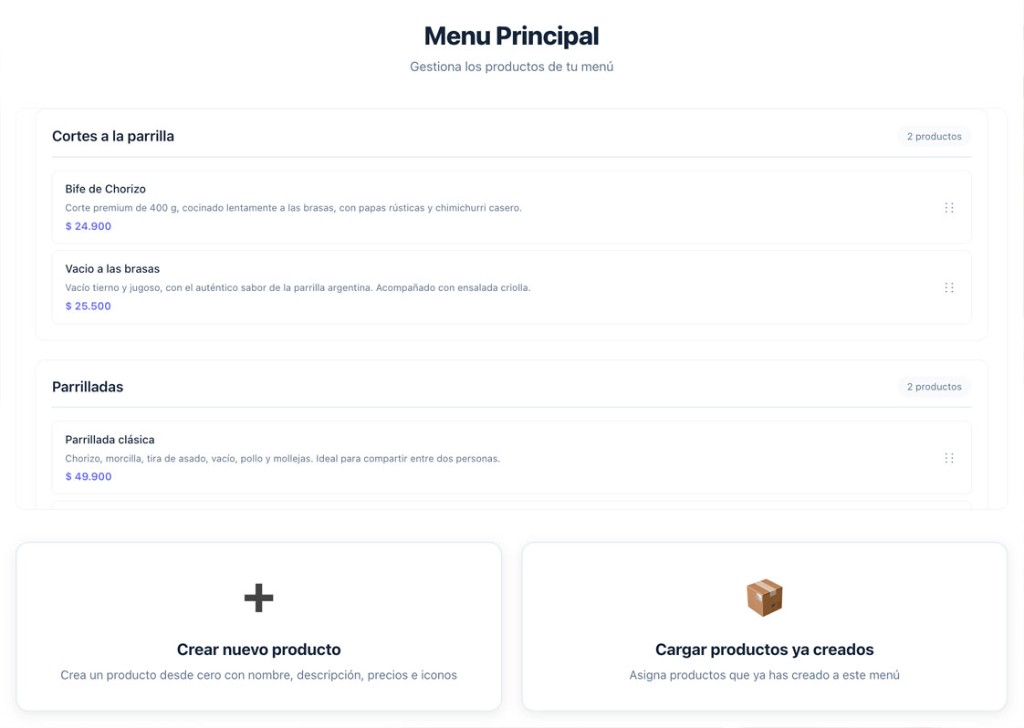
Step 5. Customize the design
The layout is part of your brand. In App Menu QR you can pick a template and adjust colors and fonts: restrained for a traditional restaurant, more visual for a modern cafe. Keep contrast and type size comfortable on a phone, because most guests will open the menu on mobile.
Step 6. Download and print your QR code
When the menu is ready, download your business QR code. Print it and place it on tables, at the entrance, or on the counter, at a size and height that is easy to scan. Before you leave it in the dining room, test it on your own phone: confirm the menu opens, prices match, and photos load. For download, print, and placement details, see how to create a QR code for your restaurant menu.
What are the benefits of a dynamic QR menu?
Beyond replacing a reprinted menu for every change, a dynamic QR menu simplifies day-to-day service.
Update prices without reprinting
You change the price in the platform and the digital menu updates. The QR code already on the tables stays the same.
Add new products without redesigning the menu
A seasonal drink, a daily special, or a new dessert goes into the right section. You do not redesign or reprint the whole menu.
Keep the offer organized
Categories separate starters, mains, drinks, or promotions. Guests reach the item sooner, and the team works from a single menu.
Present each dish more clearly
Photos and descriptions give more context than a list of names and prices. A clear layout is easier to read and more appealing.
Hide what is out of stock and show a menu for a specific day
If a dish runs out, you can turn it off temporarily. It disappears from the digital menu and comes back when it is in stock again, without changing the QR code. For a particular day — a holiday, a Sunday lunch, or an event dinner — you can publish a dedicated menu and schedule it so guests only see it then. The code already on the tables stays the same.
Offer the menu in several languages
The same menu can be read in more than one language. Guests pick theirs on the phone and see names, descriptions, and allergens, without a separate printed version or a new QR code. You manage every translation from one multilingual menu.
Print less, without dropping paper entirely
The digital menu covers frequent changes. You can still keep a few printed menus for guests who prefer paper, or for moments when a phone is not practical.
Is a QR menu better than a PDF menu?
Both open on a phone, but they are not used the same way. A PDF usually reproduces a layout made for print. On a small screen, guests often have to pinch and zoom to read prices or descriptions. Every change means editing the file and replacing the link or the code.
A QR menu built on a dedicated platform is managed from a dashboard: you update one product, keep a mobile-friendly layout, and reuse the same code. If your offer changes often, a dynamic QR menu is more practical than a PDF menu. For a fuller comparison, see QR menu vs. PDF.
Tips to make your QR menu easy to use
Before you share it, check these points:
- Group products into categories and avoid one very long list.
- Write short descriptions: what the item includes, without filler.
- Use sharp, well-lit photos.
- Make sure menu prices match the prices at the register.
- Place the QR code somewhere visible, flat, and bright enough for a camera.
- Test the menu on different phones and check text, photos, and load time.
A digital menu should look good, and it should also open quickly and make sense on the first glance.
Frequently asked questions about QR menus
Can I create a QR menu for free?
Yes. App Menu QR includes a free option to start your digital menu. Some extra features depend on the plan you choose.
Do I need to know how to code?
No. You create and customize the menu from a dashboard, without writing code or building a website from scratch.
Do guests need to download an app?
No. They scan the QR code with their phone camera and the menu opens in the browser.
Can I change prices after printing the QR code?
Yes. With an App Menu QR dynamic menu you can edit prices and products without replacing the code you already printed.
Can I use a QR menu in a cafe or a bar?
Yes. QR menus work for restaurants, bars, cafes, and other businesses that need to show products and prices in an organized way.
Do I have to remove my printed menus?
No. You can combine the QR menu with paper menus and let each guest choose how to browse the offer.
Create your free QR menu with App Menu QR
Digitizing your menu does not have to be complicated. With App Menu QR you build the menu, organize products, customize the design, and generate a QR code so guests can read it on their phone.
When you need to change a price, add a product, or adjust the offer, you do it in the platform and the printed code stays valid.