HomeFeaturesSchedule menus

Schedule your menus by days and hours

Selecciona uno de los menús de tu restaurante, define los días y horarios en los que debe estar disponible y deja que la carta digital se actualice automáticamente.

Puedes mostrar un menú todos los días durante una franja horaria o elegir días concretos de la semana. Tus clientes escanean siempre el mismo código QR y acceden al menú disponible en ese momento.

See how it works

Set schedules once and stop turning menus on or off by hand every day.

Demostración: programar menús por horarios

Show the right menu by day and time

La oferta de un restaurante no siempre es la misma durante toda la jornada.

Puedes tener una carta para desayunos, otra para almuerzos, un menú ejecutivo entre semana, una carta de cena o una propuesta especial para el fin de semana.

Con la programación de menús puedes definir cuándo debe mostrarse cada carta. Cuando llega el día y la hora configurados, el menú correspondiente queda disponible automáticamente.

  • Different menus for different times of day.
  • Scheduling for every day or specific days.
  • Start and end times.
  • The same QR code for every menu.
  • Fewer manual changes.
  • More control over the offer.
  • A clearer experience for guests.
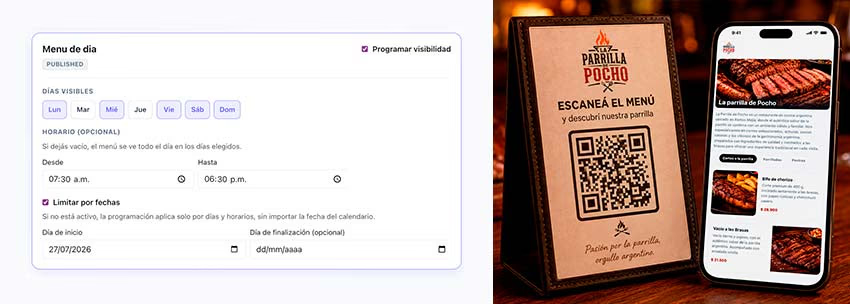
Panel de programación de menú con días y horarios junto a QR y carta digital en el móvil
Disponibilidad automática de menús por horario

What is a scheduled menu?

Un menú programado es una carta digital cuya disponibilidad se configura previamente según determinados días y horarios.

El restaurante selecciona un menú ya creado, establece cuándo debe mostrarse y guarda la programación.

A partir de ese momento, la plataforma controla su disponibilidad de manera automática.

El cliente no tiene que escanear códigos diferentes ni elegir manualmente entre todas las cartas del restaurante. Al acceder mediante el QR, encuentra el/los menús disponibles en ese momento.

Manual menu management

  • Turning menus on and off every day.
  • Remembering the hours for each menu.
  • Risk of showing a menu outside its hours.
  • Repetitive changes during the day.
  • More dependence on staff.

Scheduled menus

  • Days and hours set in advance.
  • Automatic activation.
  • The same QR code.
  • The right menu at the right time.
  • Fewer manual tasks.
Comparativa: gestión manual frente a menús programados

Choose how you want to schedule each menu

La programación puede adaptarse a diferentes rutinas de funcionamiento.

Puedes seleccionar un menú y decidir si debe estar disponible todos los días o solamente determinados días de la semana.

Every day at a set time

Utiliza esta opción cuando el menú se repite diariamente dentro de la misma franja horaria.

  • Breakfast every day from 8:00 AM to 12:00 PM.
  • Lunch menu every day from 12:00 PM to 4:00 PM.
  • Evening menu every day from 7:00 PM to 11:30 PM.
Certain days at a set time

Utiliza esta opción cuando la carta solamente debe mostrarse algunos días de la semana.

  • Lunch special Monday through Friday from 12:00 PM to 4:00 PM.
  • Brunch Saturday and Sunday from 10:00 AM to 3:00 PM.
  • Happy hour Wednesday through Friday from 6:00 PM to 8:00 PM.
  • Special menu Friday and Saturday nights.

Selecciona el menú, define días y horarios, y guarda la programación desde el panel.

Select a menu and define its availability

La programación se realiza desde el panel de administración.

Elige el restaurante, selecciona uno de sus menús y completa los días y horarios en los que quieres mostrarlo.

Select the menu

Choose the menu you want to schedule from the ones created for your restaurant. It can be breakfast, lunch, dinner, drinks, promotions, or any other offer.

Choose the days

Indicate whether the menu is available every day or pick specific days of the week.

Set the hours

Add a start time and an end time to control when the menu is shown.

Save the schedule

Once configured, the schedule is linked to the menu and starts applying automatically.

Change the schedule whenever you need

You can change days, extend hours, shorten the window, or temporarily disable the schedule from the panel.

One QR code for all your schedules

No necesitas imprimir un QR para desayunos, otro para almuerzos y otro para cenas.

El mismo código QR dirige a la carta digital del restaurante. La plataforma determina qué menú debe mostrarse según el día y la hora configurados.

Esto permite mantener los mismos soportes en las mesas, mostradores, habitaciones, carteles o materiales impresos.

  • At 9:00 AM, a guest scans the QR and sees the breakfast menu.
  • At 1:00 PM, the same code shows the lunch special.
  • At 8:00 PM, the guest opens the dinner menu.
Código QR único y carta digital que cambia según el horario
Mismo QR mostrando diferentes menús según el horario

Organize menus for the whole day

Puedes preparar diferentes cartas para cada momento de la jornada y programarlas con anticipación.

Breakfast

Horario: Every day from 8:00 AM to 12:00 PM.

Coffee, teas, toast, pastries, bowls, and breakfast options.

Lunch

Horario: Every day from 12:00 PM to 4:00 PM.

Starters, mains, lunch specials, drinks, and desserts.

Afternoon

Horario: Every day from 4:00 PM to 7:00 PM.

Café items, pastries, cold drinks, and shareable options.

Dinner

Horario: Every day from 7:00 PM until close.

Full menu, specials, wines, cocktails, and desserts.

Cada menú se muestra dentro de su franja correspondiente, mientras el restaurante mantiene un único código QR.

Create special offers for specific days

No todas las cartas deben estar disponibles durante toda la semana.

Puedes utilizar la programación para mostrar propuestas específicas en días concretos.

  • Lunch special Monday through Friday.
  • Brunch on Saturday and Sunday.
  • Wine list Friday and Saturday nights.
  • Happy hour Wednesday through Friday.
  • Family menu on Sundays.
  • Special menu during events.
  • Seasonal menu for a set period, when available settings allow it.

How to schedule a digital menu

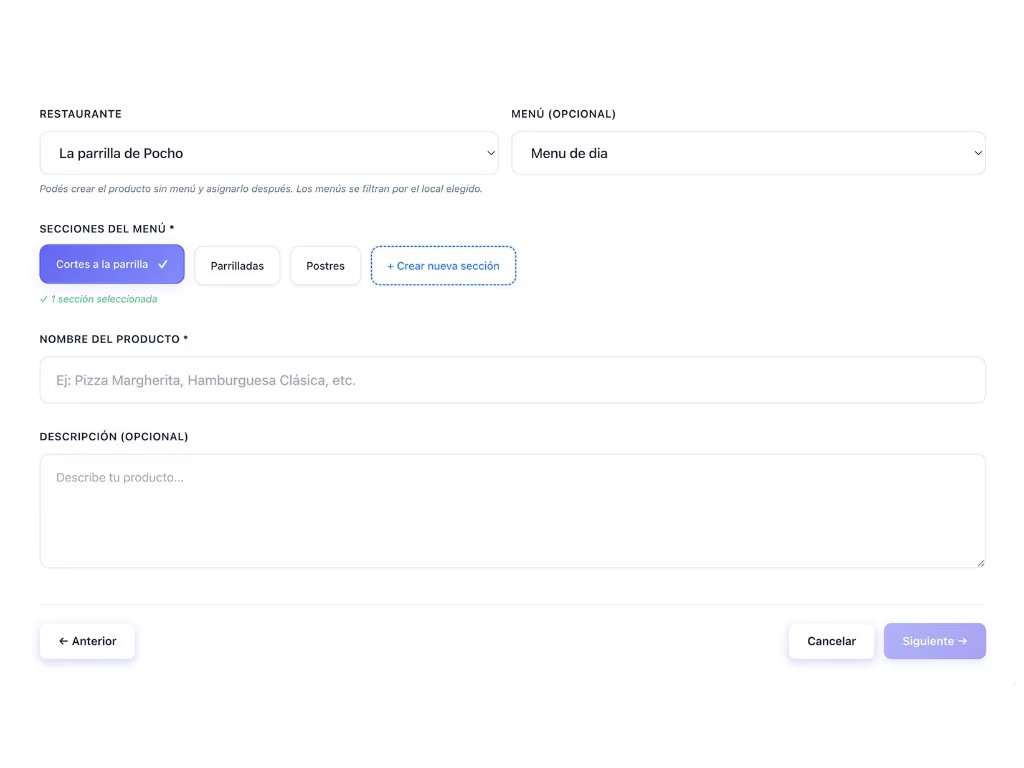
  1. Create your restaurant’s menus

    Prepare the menus you want to use, such as breakfast, lunch, dinner, or promotions.

    Form to create or edit menu products
    Creating restaurant menus
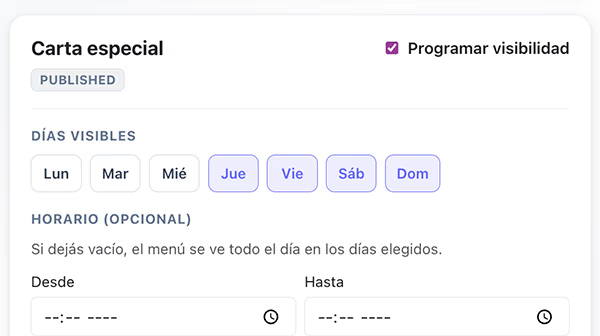
  2. Select the menu to schedule

    Open the schedule settings and choose one of the available menus.

    Special menu with visibility schedule and selected days of the week
    Selecting the menu to schedule
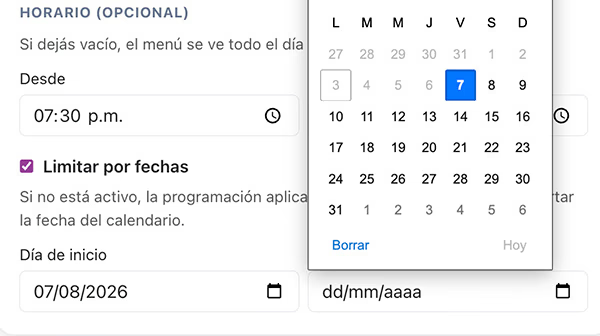
  3. Set the days

    Indicate whether it’s available every day or pick specific days of the week.

    Option to limit the schedule by dates with a calendar
    Selecting days of the week
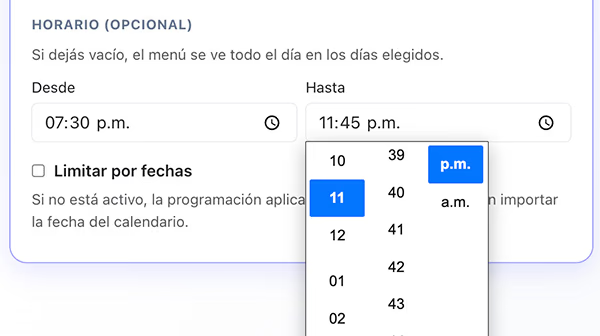
  4. Configure the hours

    Add the start time and end time.

    From and To time fields for menu availability
    Start and end times
  5. Save and review the schedule

    Check the setup and verify how the menu behaves inside and outside the selected hours.

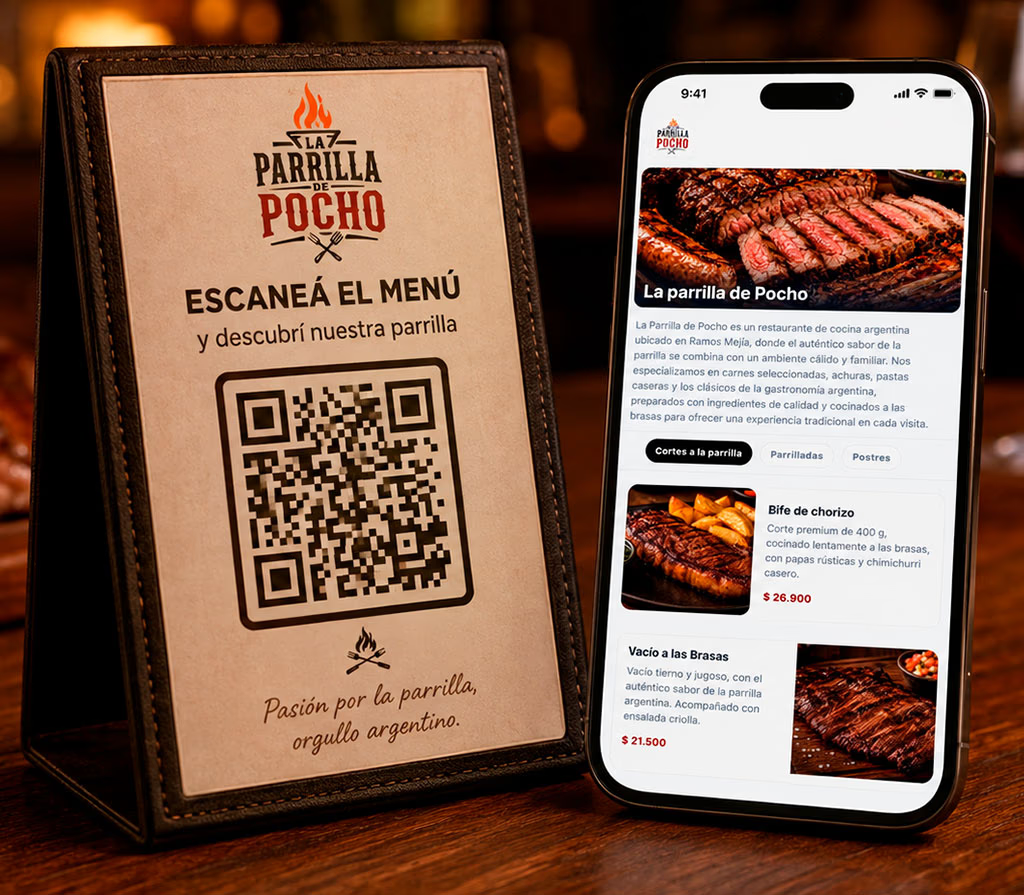
    La Parrilla de Pocho digital menu on mobile after scanning the QR
    Reviewing the scheduled menu

A useful feature for different types of restaurants

La programación de menús puede adaptarse a negocios con diferentes horarios, servicios y propuestas gastronómicas.

  • Restaurants with breakfast, lunch, and dinner.
  • Cafés.
  • Hotels.
  • Bars.
  • Beach restaurants.
  • Venues with happy hour.
  • Businesses with a lunch special.
  • Restaurants with weekend brunch.
  • Venues with a late-night menu.
  • Dining halls and centers with service windows.
  • Restaurants with different offers by day.

Benefits of scheduling your restaurant menus

Save time

Avoid turning menus on and off manually every day.

Fewer mistakes

Lower the risk of showing a menu outside its hours or on the wrong day.

Keep the offer organized

Separate breakfast, lunch, dinner, and promotions into different menus.

A better guest experience

Show only the menu that matches the moment they open it.

Always use the same QR

Manage different menus without changing the codes on the tables.

Fit the menu to your operations

Set daily hours or specific days based on how the business actually runs.

Fewer tasks during service

Let staff focus on guests instead of updating the menu by hand.

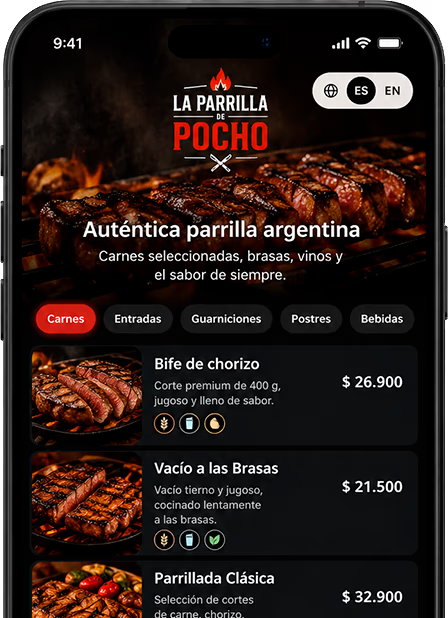
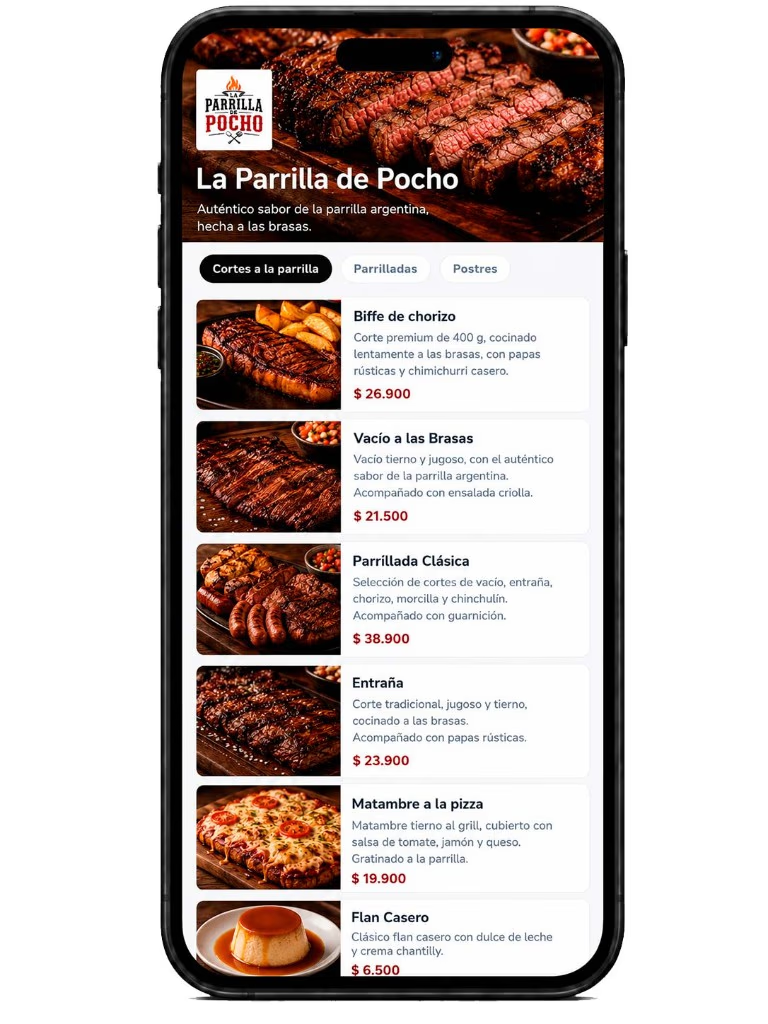
Menú digital de La Parrilla de Pocho en el móvil con categorías y productos
Vista del menú digital programado en el teléfono

Change schedules when your service changes

Los horarios de un restaurante pueden variar según la temporada, el día de la semana o las necesidades del negocio.

Desde el panel puedes revisar la programación de cada menú y realizar cambios cuando sea necesario.

  • Change the start time.
  • Edit the end time.
  • Add or remove days.
  • Switch from every-day scheduling to specific days.
  • Temporarily disable a schedule.
  • Select a different menu.
  • Review which menu is scheduled for each window.

Los cambios no requieren generar un nuevo código QR.

Demostración: modificar horarios de menús programados

Best practices for organizing scheduled menus

  • Avoid overlapping scheduled menus if the app doesn’t set an automatic priority.
  • Review opening and closing hours.
  • Check the time zone configured for the restaurant.
  • Use clear names to identify each menu.
  • Test the QR before each new schedule starts.
  • Keep the products on each menu up to date.
  • Review hours when the season changes.
  • Disable schedules that are no longer used.

Combine scheduling with other digital menu features

Frequently asked questions about menu scheduling

Yes. You can select the menu and set a time window that repeats every day.

Automate your digital menu schedules

Selecciona tus menús, define los días y horarios de disponibilidad y permite que cada cliente encuentre la carta adecuada al escanear el código QR.

Configura una vez la programación y reduce los cambios manuales durante la jornada.

Organize breakfasts, lunches, dinners, and promotions from one panel.

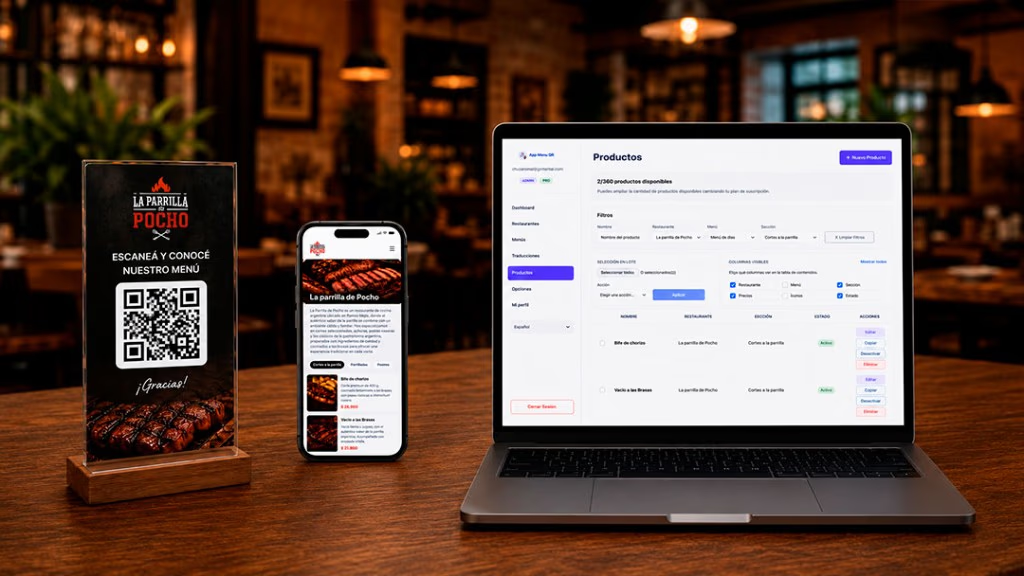
Menú digital, código QR y gestión de horarios del restaurante
Carta digital programada con QR y panel de gestión