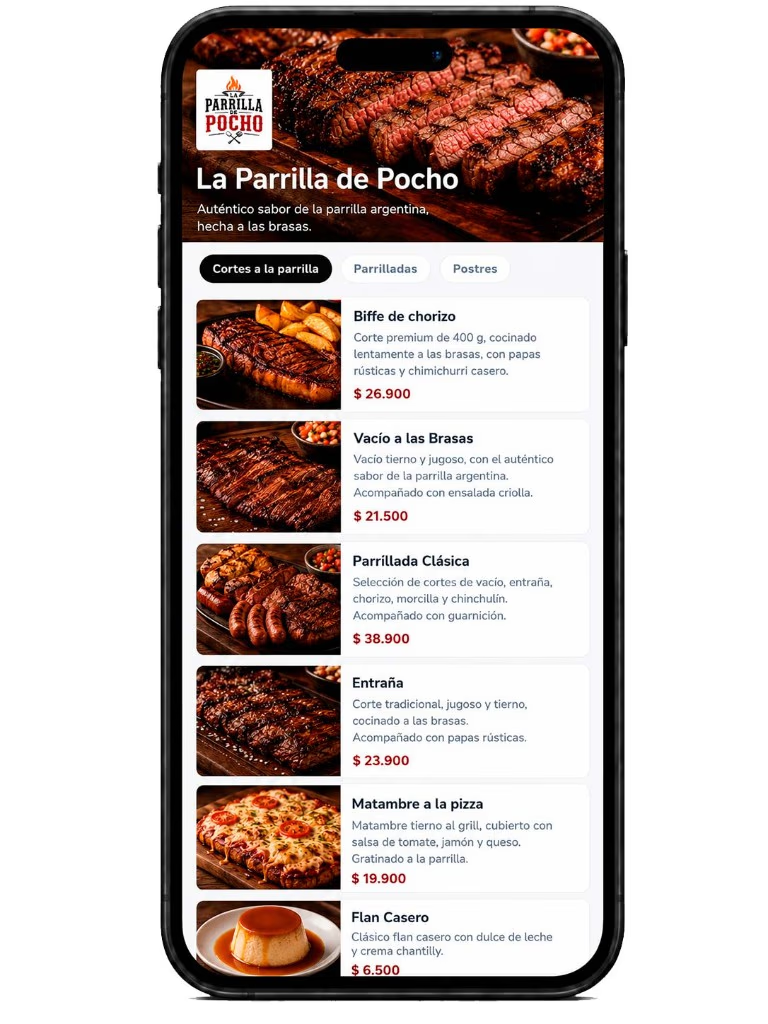
HomeFeaturesPrint menu

Create and print your restaurant menu

Utiliza los productos, categorías, precios y descripciones de tu carta digital para preparar una versión lista para imprimir.

Selecciona el menú, elige cómo distribuir sus secciones y genera una carta en papel sin volver a cargar toda la información ni diseñarla desde cero. Puedes imprimir cada categoría en una página nueva o mostrar todas las secciones una debajo de la otra.

See how it works

Preview the result and choose the layout that best fits your restaurant.

Demostración: imprimir menú de restaurante

Use the same information for QR and paper

No necesitas administrar una carta digital por un lado y un documento impreso por otro.

La información que ya cargaste en la aplicación puede utilizarse para crear una versión en papel con las categorías y productos de tu restaurante.

Cuando actualizas un precio, corriges una descripción o añades un nuevo plato, puedes volver a generar la carta impresa con la información actualizada.

  • Centralized products.
  • Up-to-date prices.
  • Organized categories.
  • Reused descriptions.
  • Less duplicated work.
  • A single source of information.
  • Different formats to present the menu.
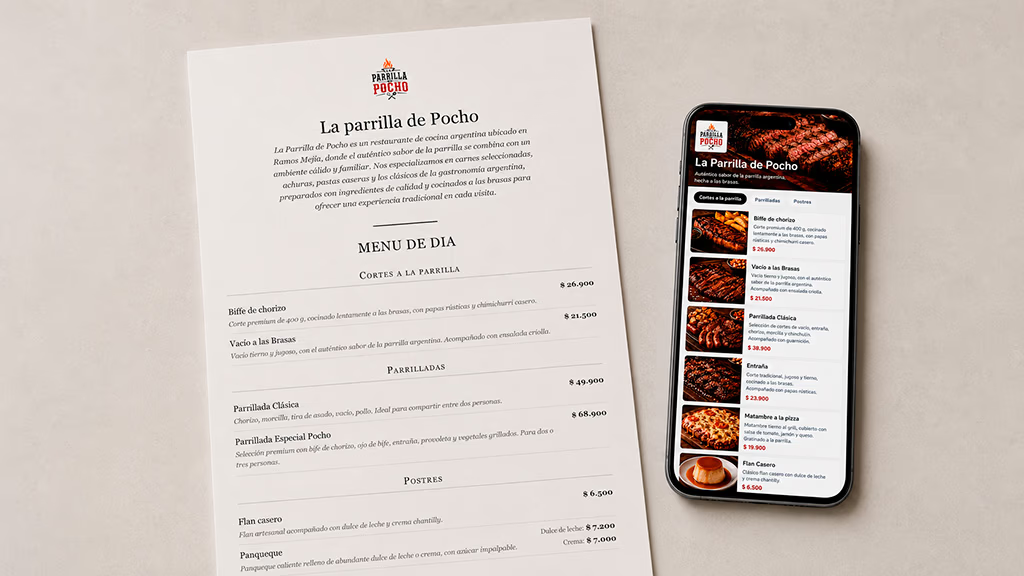
Carta impresa de La Parrilla de Pocho junto al mismo menú en el móvil
Misma información para menú QR y carta impresa

What does printing the menu from the app mean?

Significa utilizar la información del menú digital para crear una versión organizada y preparada para impresión.

La aplicación toma las categorías y productos seleccionados y los distribuye según la opción elegida.

El restaurante puede revisar el resultado antes de imprimir y decidir si quiere separar cada sección o mantener todo el contenido en una misma secuencia.

Create the menu manually

  • Rewriting products and prices.
  • Redesigning the document.
  • Risk of keeping mismatched data.
  • Editing several files when the menu changes.
  • More prep time.

Generate the menu from the app

  • Use products already loaded.
  • Keep prices and descriptions centralized.
  • Choose how sections are laid out.
  • Regenerate the menu after an update.
  • Cut repetitive tasks.
Comparativa: carta manual frente a carta generada desde la app

Choose how you want to lay out the sections

La estructura de una carta impresa puede variar según la cantidad de productos, el tipo de restaurante y la forma en que se entrega al cliente.

La aplicación permite elegir entre dos formas principales de organizar el contenido.

Each section on a new page

Selecciona esta opción cuando quieras que cada categoría comience en una página independiente.

  • Starters on one page.
  • Mains on another.
  • Desserts on another page.
  • Drinks in a separate section.

Esta opción puede resultar útil para cartas amplias, menús con muchas categorías o documentos que necesitan una separación visual clara.
All categories one under the other

Selecciona esta opción cuando quieras crear una carta continua. Las categorías se muestran en orden y sus productos aparecen uno después del otro, sin forzar un salto de página para cada sección.

Esta opción puede ser adecuada para:

  • Shorter menus.
  • Compact menus.
  • Continuous pages.
  • Event menus.
  • Simple menus with few categories.

Selecciona el menú, elige la distribución y previsualiza antes de imprimir.

Select your menu and prepare the printed version

La creación de la carta impresa se realiza utilizando la información que ya existe dentro de tu cuenta.

Select the restaurant

Choose the venue whose menu you want to prepare for printing.

Select the menu

Pick the menu that contains the categories and products you want to include.

Review the content

Check names, prices, descriptions, and category order before generating the printed version.

Choose the layout

Decide whether each section should start on a new page or whether all categories should stack one under another.

Preview the result

Review how the information is laid out before printing to catch page breaks, long text, or products that need a fix.

Print the menu

Use the available print option to produce the copies your restaurant needs.

Generate the menu with your product information

La versión impresa utiliza los datos configurados dentro del menú. Según las opciones disponibles, puede incluir:

Categories

Sections such as starters, mains, desserts, drinks, breakfast, or special menus.

Product names

The name of each dish or drink inside its matching category.

Descriptions

Ingredients, sides, preparation methods, or useful details for guests.

Prices

The amounts configured in the digital menu.

Restaurant identity

Name, logo, and other elements available in the selected template or settings.

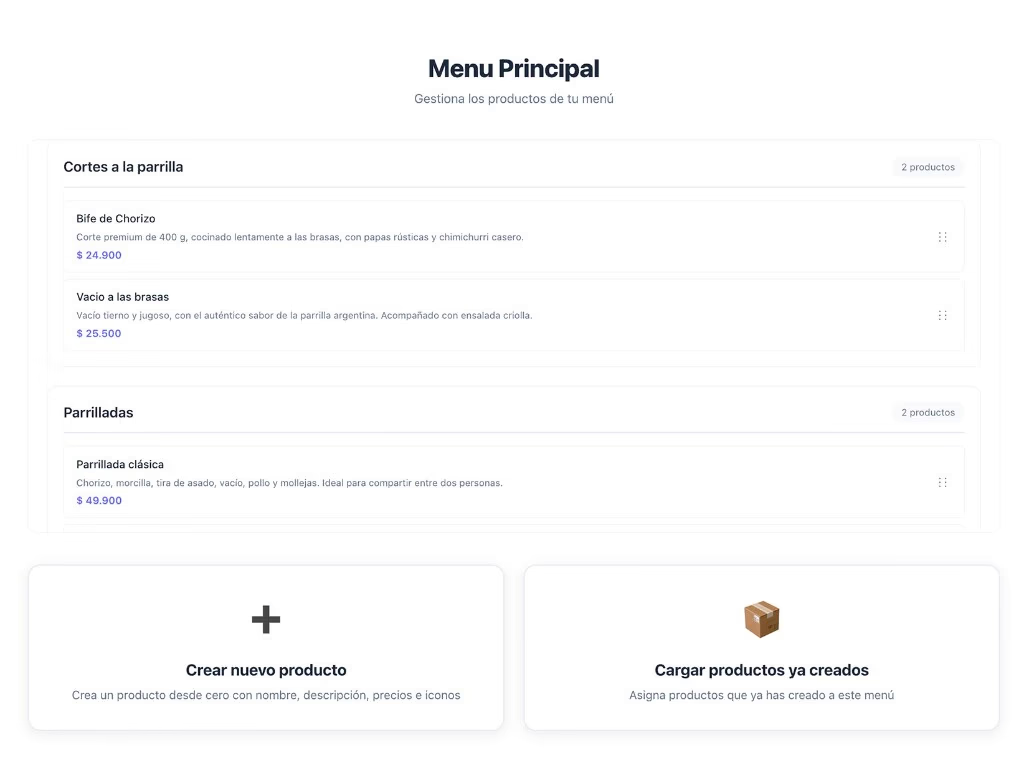
Gestión de categorías del menú digital usadas en la carta impresa
Información de productos en la carta impresa

Update the menu and generate a new version

Los productos, precios y descripciones de un restaurante pueden cambiar con frecuencia.

Cuando modificas la información dentro de la aplicación, puedes volver a preparar la carta impresa utilizando los datos actualizados.

Esto permite evitar diferencias entre la carta digital y la carta en papel.

  • Change a dish price.
  • Fix a description.
  • Add a new product.
  • Remove a category that’s no longer used.
  • Reorder sections.
  • Prepare a seasonal menu.
  • Create an updated version for an event.
Edición de precios en el panel para generar una nueva carta impresa
Actualización de precios antes de reimprimir

How to print your restaurant menu

  1. Complete your digital menu

    Create categories and add products, prices, and descriptions.

    Digital menu category management used for the printed menu
    Creating menu products
  2. Open the print option

    Select the restaurant menu you want to print.

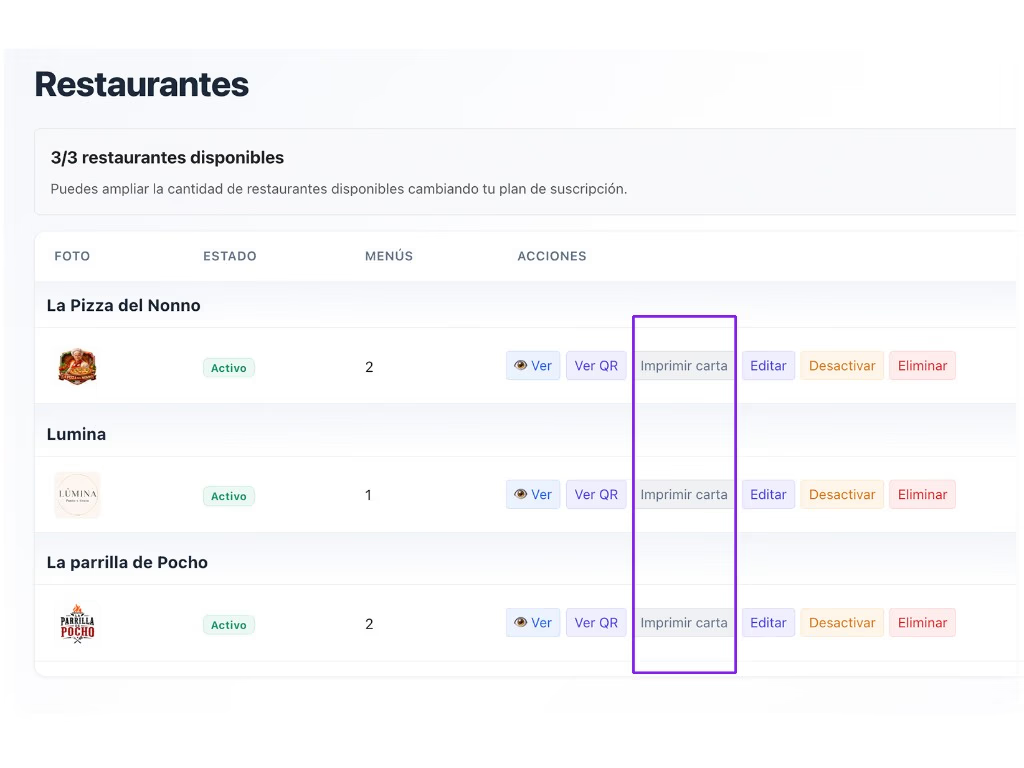
    Restaurant list with the Print menu button highlighted
    Selecting restaurant and menu
  3. Review the information

    Make sure the details are up to date before generating the menu.

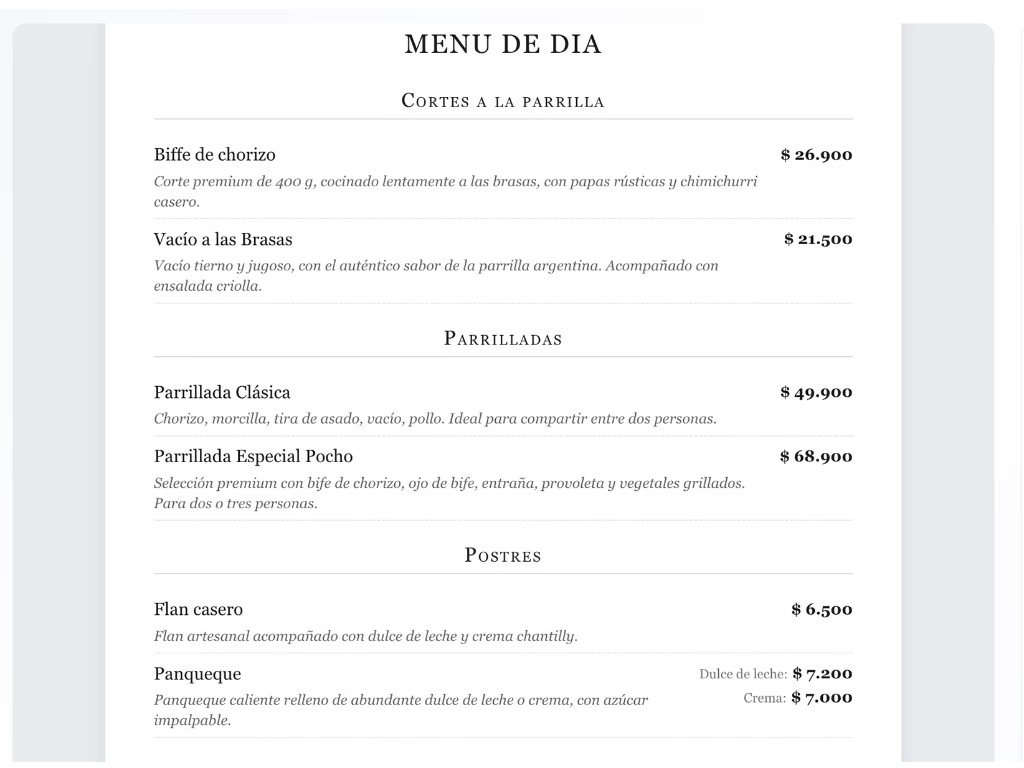
    Menu preview with categories, products, descriptions, and prices
    Reviewing prices and descriptions
  4. Configure design and printing

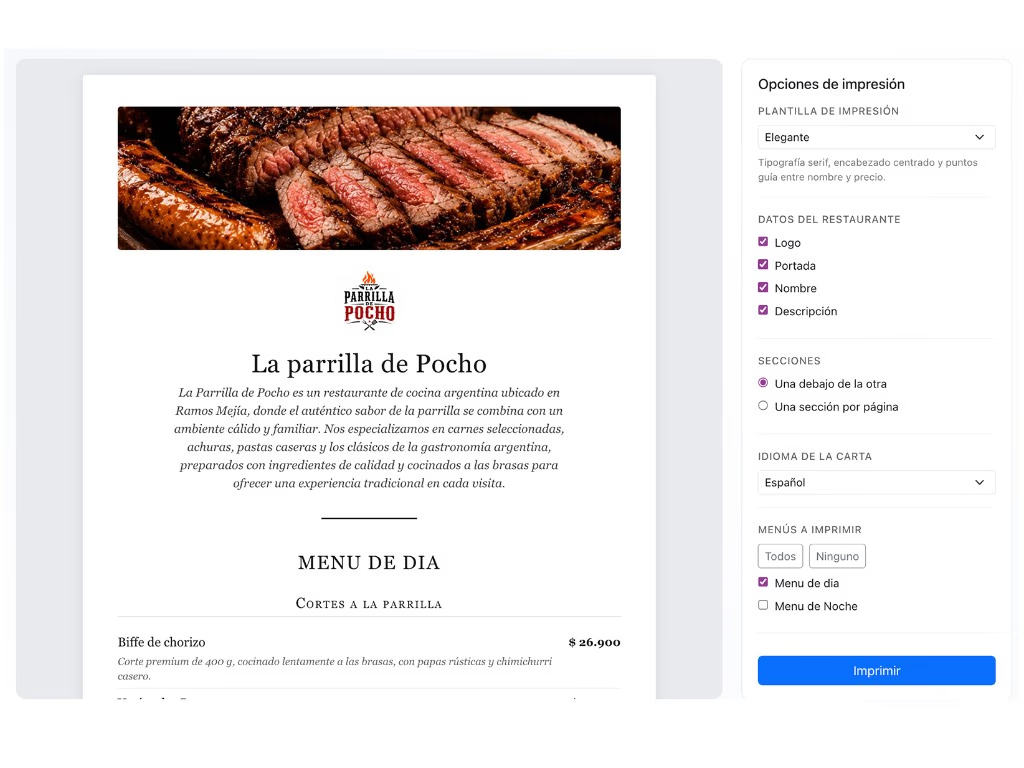
    Select the menu design, the menu you want to print, and how pages are laid out.

    Print panel with template, menus to print, and section layout options
    Design, menu, and page layout
  5. Preview and print

    Review the result and prepare the copies your restaurant needs.

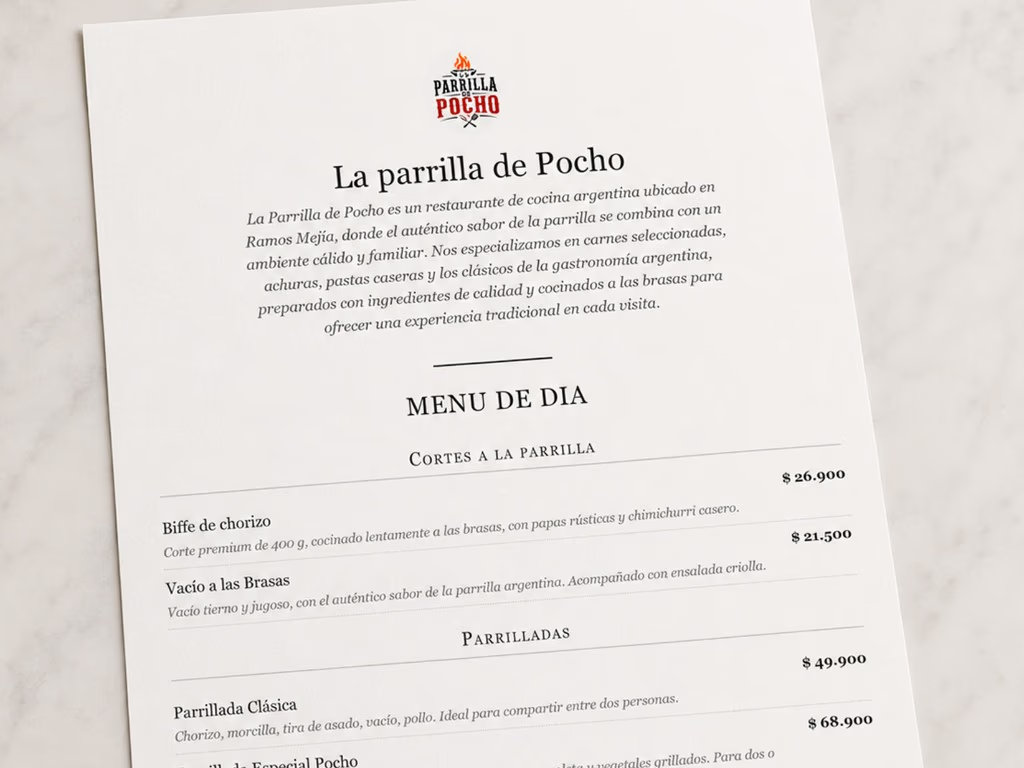
    Printed La Parrilla de Pocho menu ready to use in the restaurant
    Printed menu preview

A useful feature for different types of menus

La opción de impresión puede utilizarse en diferentes situaciones dentro del restaurante.

  • Main menu for tables.
  • Lunch special.
  • Drinks menu.
  • Wine list.
  • Breakfast menu.
  • Dessert menu.
  • Event menu.
  • Seasonal menu.
  • Menus for hotels.
  • Menus for counters.
  • Support material for staff.
  • Temporary copies when a guest prefers paper.

Benefits of creating the printed menu from the app

Avoid entering information twice

Use the same products, categories, prices, and descriptions from the digital menu.

Fewer mismatches between versions

Keep a single source of information for the QR menu and the paper menu.

Save design time

Generate an organized layout without starting a document from scratch.

Choose the best layout

Separate categories by page or create a continuous menu.

Update the menu easily

Change details in the panel and prepare a new version to print.

Combine digital and print formats

Offer a QR menu and keep paper copies when service needs them.

Keep a consistent presentation

Use the same information and organization across formats.

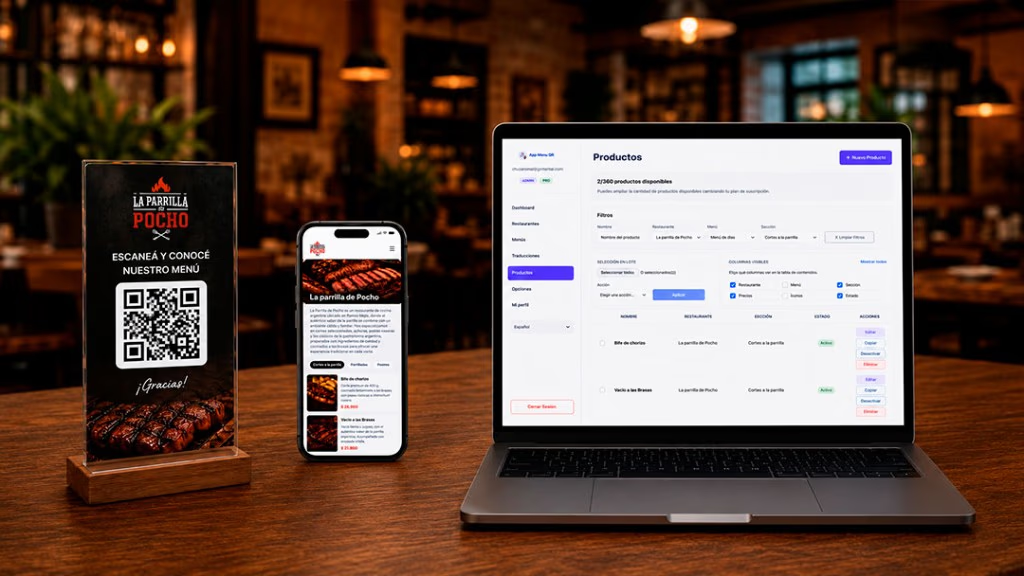
Menú digital en el móvil junto a la opción de generar una versión impresa
Menú digital listo para complementar con carta impresa

Combine the digital menu with the paper menu

La carta digital y la carta impresa no tienen que competir entre sí.

Puedes utilizar el QR como formato principal para mantener la información actualizada y disponer también de una versión en papel para clientes que la soliciten, eventos o situaciones específicas.

Digital menu

  • Instant updates.
  • The same QR code.
  • Built for phones.
  • Available in multiple languages.
  • Lets you enable or disable products.
  • Ideal for frequent changes.

Printed menu

  • Browse without using a phone.
  • Useful as support at tables.
  • Good for stable menus.
  • Can be used for events or counters.
  • Requires reprinting when information changes.

Utiliza ambos formatos según las necesidades del restaurante y gestiona el contenido desde un único lugar.

Best practices before printing your menu

  • Review every price.
  • Check that disabled products that shouldn’t print are excluded.
  • Keep descriptions short.
  • Proofread spelling.
  • Order categories correctly.
  • Check page breaks.
  • Preview the full menu.
  • Verify the page count.
  • Print a test copy.
  • Check text size for readability.
  • Avoid printing large quantities before confirming the final result.

Combine printing with other digital menu features

Frequently asked questions about printing menus

No. The printed version uses the information already loaded in the digital menu.

Create the printed version of your digital menu

Selecciona tu menú, elige cómo distribuir las categorías y prepara una carta en papel utilizando los productos, precios y descripciones que ya cargaste.

Gestiona la carta digital y la versión impresa desde la misma plataforma.

Manage the digital menu and printed version from one place.

Menú digital y carta impresa gestionados desde la misma plataforma
Carta impresa generada desde el menú digital